3 Installation Methods: You can install RBTV77 on a TV Box via Downloader app (easiest), box browser download, or USB drive transfer. Most Android TV boxes support all three methods. Choose the one that works best for your device.
Choose Your Installation Method
Downloader App
Easiest · Code: 5290394
Browser Download
Built-in box browser
USB Transfer
From PC/Mac via USB drive
Method 1: Downloader App (Recommended)
The simplest method for any Android TV box. Uses code 5290394 for automatic download and install.
1
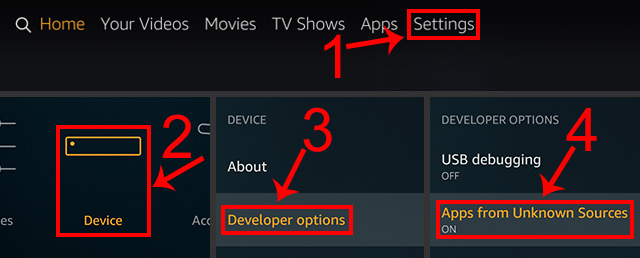
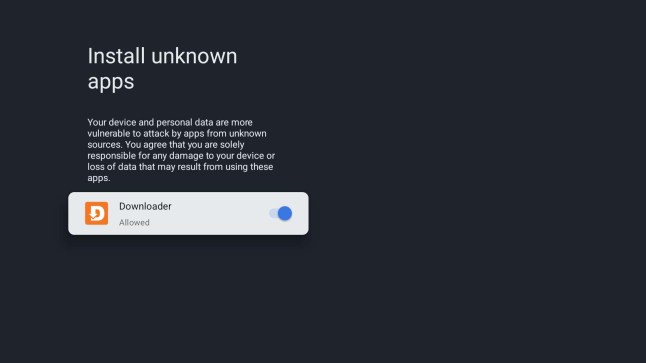
Enable Unknown Sources
On your TV box, go to Settings → Security (sometimes under Device Security or Privacy). Find Unknown Sources or Install Unknown Apps and toggle it ON.
Different box, different path: On some generic Android boxes it may be Settings → Additional Settings → Security → Unknown Sources. If you can't find it, search for "Unknown Sources" in your settings search bar.
2
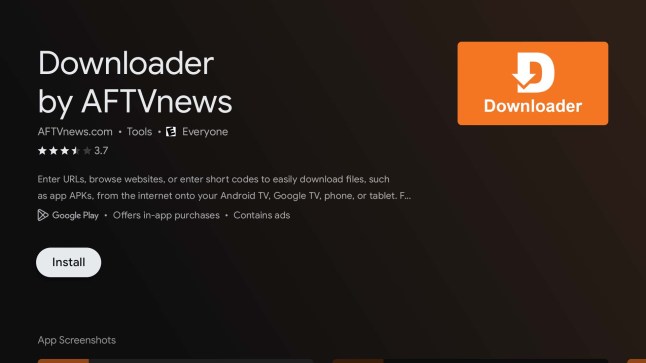
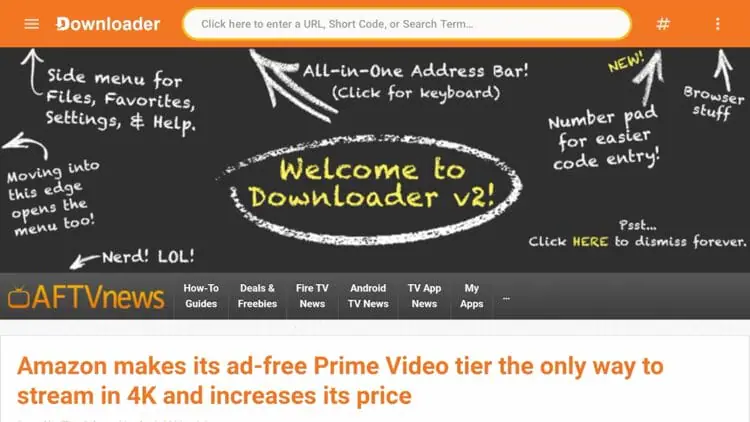
Install Downloader App
Open the Google Play Store or App Store on your TV box and search for "Downloader by AFTVnews". Install the free orange app. If the Play Store is not available on your box, proceed to Method 2 (browser download) instead.
3
Enter Code 5290394
Open the Downloader app and tap the URL/code input field. Enter the RBTV77 code and press Go:
RBTV77 Downloader Code
5290394
The RBTV77 TV APK will download automatically. This takes 30–90 seconds.
4
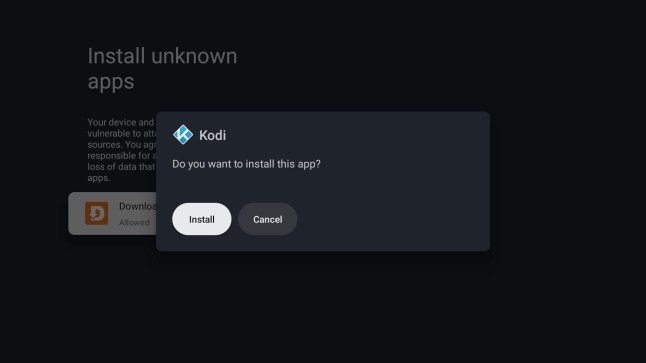
Install & Launch RBTV77
Tap Install when the installation prompt appears. Once installation is complete, tap Open to launch RBTV77. Select your sport category, choose a live event, and enjoy free HD sports streaming on your TV box.
Pro tip: Delete the APK installer when prompted by Downloader to free up storage. The RBTV77 app stays installed.
Method 2: Browser Download
Use your TV box's built-in browser or install one from the app store to download the APK directly.
1
Enable Unknown Sources (Same as Above)
Complete Step 1 from Method 1 — enable Unknown Sources in your box's security settings before proceeding.
2
Open Your TV Box Browser
Most Android TV boxes come with a pre-installed browser. Launch it from your app list. If no browser is available, install Firefox TV or Puffin TV Browser from the app store.
Tip: Use a wireless keyboard with your TV box for easier URL typing. Most boxes support Bluetooth or USB keyboards.
3
Navigate to the RBTV77 Download Page
In the browser, navigate to this website's download page and download the RBTV77 TV APK file. The file (approximately 22MB) will save to your box's Downloads folder.
4
Install via File Manager
Open a file manager app on your TV box (most boxes include one built-in, or install FX File Explorer from the app store). Navigate to the Downloads folder, find the RBTV77 APK file, and tap it to install.
Method 3: USB Drive Transfer
Best for boxes without internet browser access or Play Store. Transfer the APK from your computer via USB drive.
1
Download APK to Your Computer
On your PC or Mac, download the RBTV77 TV APK file from this website's download page. Save it to your desktop or a convenient folder.
2
Copy APK to USB Drive
Insert a USB flash drive into your computer and copy the RBTV77 APK file to the root of the USB drive (not inside any folder) for easiest access.
3
Insert USB Drive into TV Box
Safely eject the USB drive from your computer and insert it into the USB port on your TV box. Most boxes will detect it automatically and may open a file browser prompt.
Format: Make sure your USB drive is formatted as FAT32 or exFAT for maximum compatibility with Android TV boxes.
4
Install from File Manager
Open the file manager on your TV box, navigate to the USB drive, find the RBTV77 APK file, and tap it to begin installation. Confirm the installation when prompted and RBTV77 will be ready to use.
TV Box Compatibility Notes
Buzz TV / BuzzTV XRS 4500Full compatibility. Use Downloader method (code 5290394). Buzz TV boxes run full Android and all methods work.
Formuler Z8 / Z10 ProCompatible via Downloader or browser method. Formuler boxes have MyTVOnline built-in but RBTV77 installs as a separate app.
Generic Android BoxAll three methods work. If Play Store is not available, use Method 2 (browser) or Method 3 (USB). Ensure Android 5.0+.
MAG Box (Linux-based)MAG boxes running Linux OS are NOT compatible. RBTV77 requires Android. Only MAG boxes running Android firmware are supported.
Troubleshooting
Can't Find Unknown SourcesOn some boxes: Settings → System → Security. Or try Settings → More Settings → Security. The location varies by Android version and manufacturer.
APK Won't InstallCheck that Unknown Sources is enabled. Make sure the APK isn't corrupted — re-download it. Ensure your box has at least 50MB of free storage.
App Shows Black ScreenThis usually means the mobile APK was installed instead of the TV APK. Uninstall and reinstall using the correct TV APK version.
Remote Can't Control AppThe RBTV77 TV APK is fully D-pad compatible. If navigation is broken, try reinstalling. Some cheap remotes may need mapping via a remote customizer app.