Two Methods Available: You can install RBTV77 on Android TV using the Downloader app (recommended, code 5290394) or by sideloading the APK via a USB drive or browser download. Both methods are covered below.
Method 1: Using Downloader App (Recommended)
The fastest and easiest method. Uses the free Downloader app available on Google Play Store.
1
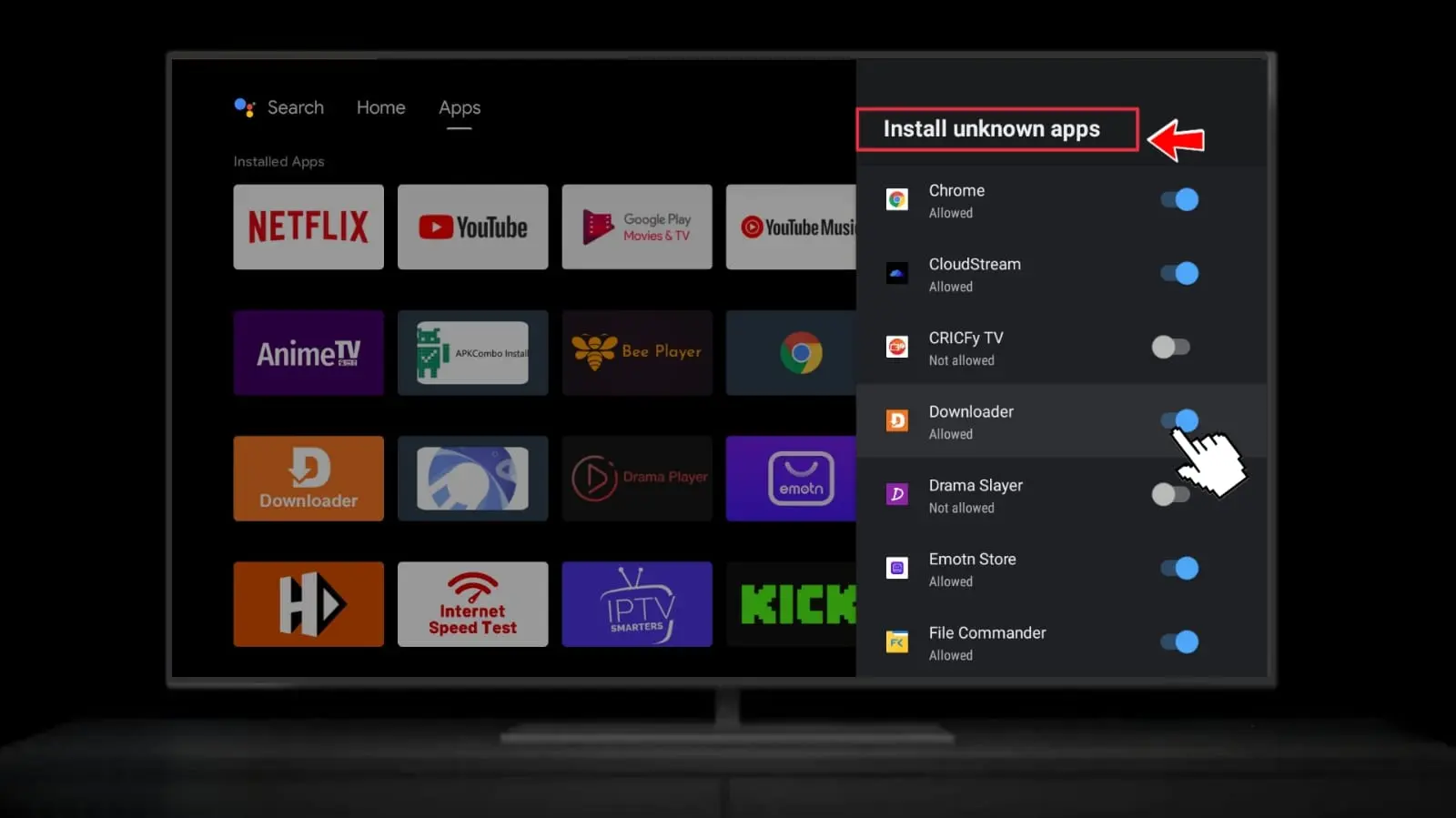
Enable Unknown Sources in Settings
On your Android TV, navigate to Settings → Device Preferences → Security & Restrictions. Toggle on Unknown Sources. On Sony Bravia TVs: Settings → Device Preferences → Security & Restrictions → Unknown Sources → ON.
Sony Bravia users: You may need to go to Settings → Apps → Security & Restrictions → Unknown Sources and enable it for each browser or file manager individually.
2
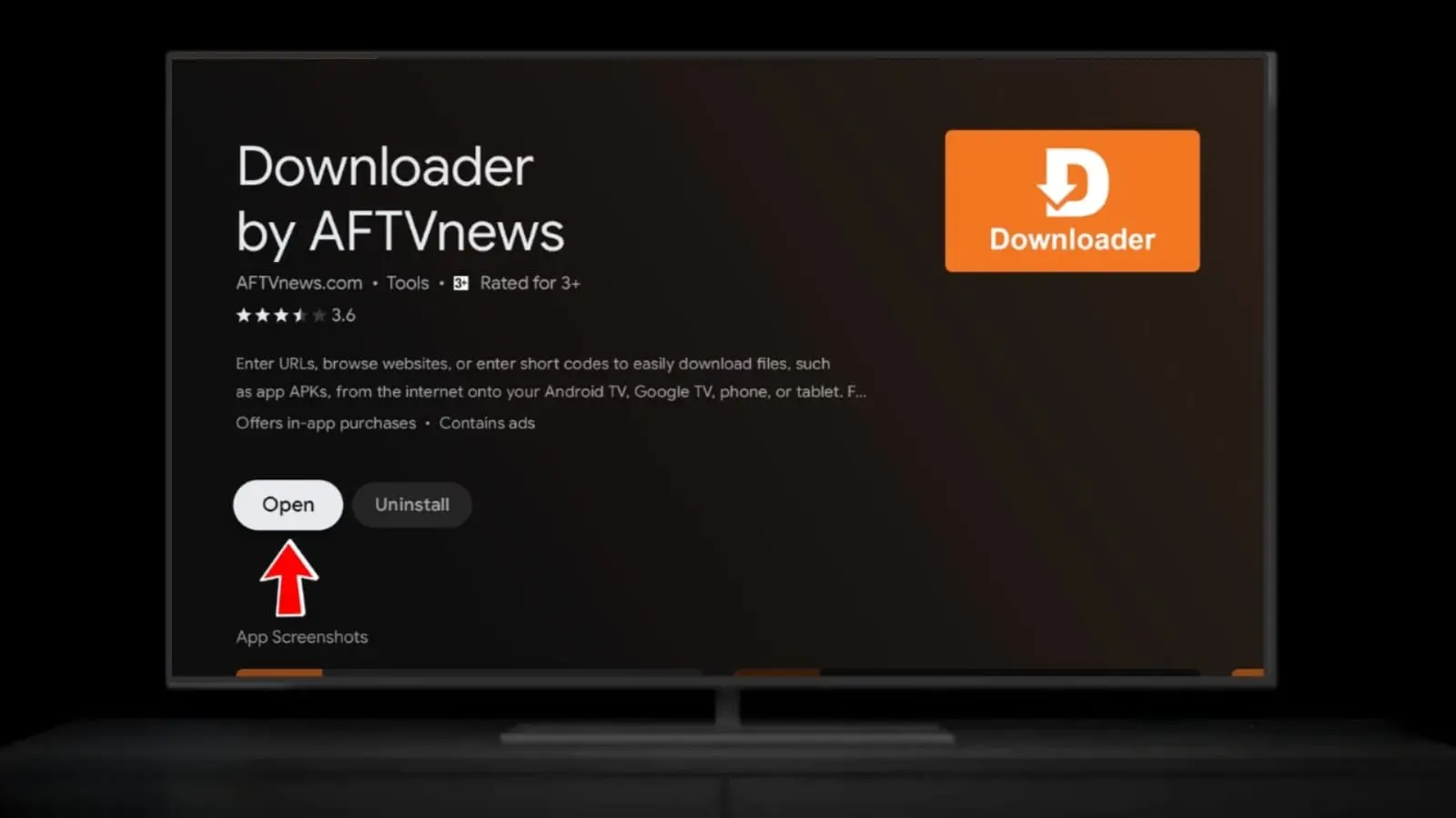
Install Downloader from Google Play
Open the Google Play Store on your Android TV. Search for "Downloader by AFTVnews" and install the free app. It's the same orange Downloader app used for Fire TV.
3
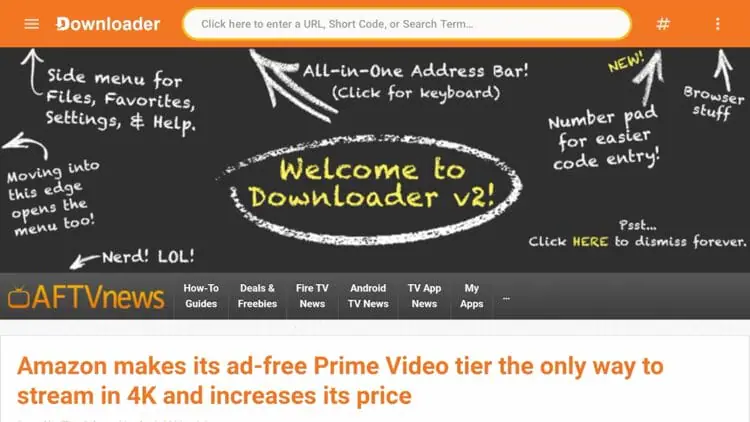
Enter Code 5290394 in Downloader
Open Downloader and tap the URL/code input field. Enter the RBTV77 code and press Go:
RBTV77 Downloader Code
5290394
The RBTV77 TV APK will begin downloading automatically. Wait for the download to complete (30–60 seconds).
4
Install the RBTV77 TV APK
When the download finishes, tap Install on the prompt that appears. The installation takes about 20 seconds. Once complete, tap Open to start RBTV77 immediately.
Delete the APK file when Downloader offers the option — this frees up storage space while keeping the app installed.
Method 2: Browser Download (Alternative)
If the Downloader app isn't available on your device, use the built-in Android TV browser to download the APK directly.
1
Enable Unknown Sources
First complete Step 1 from Method 1 above — enable Unknown Sources in Settings → Device Preferences → Security & Restrictions.
2
Open the Android TV Browser
Launch the browser on your Android TV (Chrome, Firefox TV, or any installed browser). Navigate to this website's download page and download the RBTV77 TV APK file.
Tip: If typing is difficult with the remote, pair a Bluetooth keyboard or use the Android TV remote app on your smartphone for easier text input.
3
Install via File Manager
After download, open a file manager app (e.g., FX File Explorer or Solid Explorer from Google Play). Navigate to the Downloads folder, find the RBTV77 APK file, and tap to install.
Device-Specific Notes
Each Android TV brand has slightly different settings menus. Here are quick references for popular devices.
Sony Bravia Android TVSettings → Device Preferences → Security & Restrictions → Unknown Sources. You may need to enable it per-app (for Downloader specifically).
Xiaomi Mi Box S / 4KSettings → Device Preferences → Security & Restrictions → Enable Unknown Sources. Mi Box S (2nd gen) runs Android TV 9 for best compatibility.
NVIDIA Shield TV / ProSettings → Device Preferences → Security & Restrictions → Enable Unknown Sources. Shield TV runs Android TV 11 — full compatibility guaranteed.
TCL / Philips / HisenseSettings → More Settings → Security & Restrictions → Enable Unknown Sources. Menu paths vary slightly between firmware versions and models.
Troubleshooting
Downloader App Not AvailableDownloader may not be in the Play Store on some Android TV regions. Use Method 2 (browser download) instead, or install Downloader's APK via USB.
App Shows Wrong UIMake sure you downloaded the TV APK (not the mobile APK). The TV version has a leanback interface designed for big screens and remote controls.
Remote Can't Navigate AppUpdate RBTV77 to the latest version. The TV APK is fully D-pad compatible. If navigation is broken, restart the app or reinstall.
No Video PlaysTry switching stream servers inside RBTV77. Check your internet connection speed (minimum 5 Mbps for HD). Restart your router if needed.