Important: Google TV requires enabling Developer Mode before sideloading apps. This is a slightly longer process than Fire TV, but it's a one-time setup. Follow each step carefully and RBTV77 will be running in about 5 minutes.
Part 1: Enable Developer Mode
Google TV's Developer Mode unlocks the ability to install apps from outside the Google Play Store. This is required for RBTV77 installation.
1
Open Google TV Settings
From the Google TV home screen, click your profile icon (top-right corner) or press the gear/settings button on your remote. Select Settings from the menu.
Screenshot: Google TV Home → Settings
2
Navigate to System → About
In Settings, scroll to find and select System, then choose About. You will see device information including the Build Number.
3
Tap Build Number 7 Times
Find the Build Number entry and rapidly click it 7 times using your remote's select/OK button. After a few taps you will see a countdown message: "You are N steps away from being a developer."
You'll know it worked when you see: "You are now a developer!" — Developer Options will now appear in your Settings menu.
4
Enable Unknown Sources in Developer Options
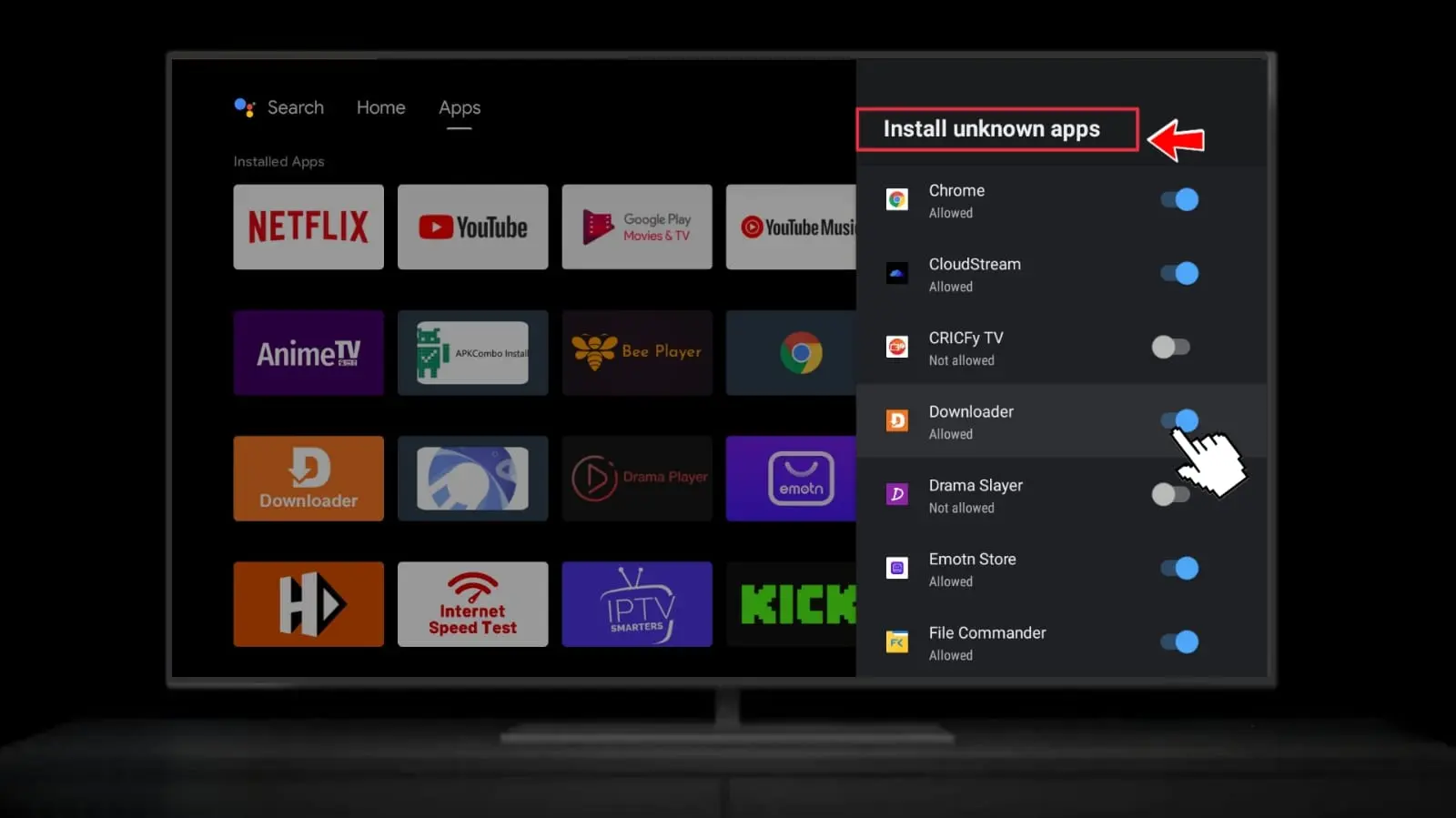
Go back to Settings → System and you will now see Developer Options. Open it and find Install Unknown Apps or Unknown Sources. Toggle it ON — or enable it specifically for the Downloader app after installing.
Part 2: Install Downloader & RBTV77
Now use the Downloader app with code 5290394 to install RBTV77 directly onto your Google TV device.
5
Search for Downloader in Google Play
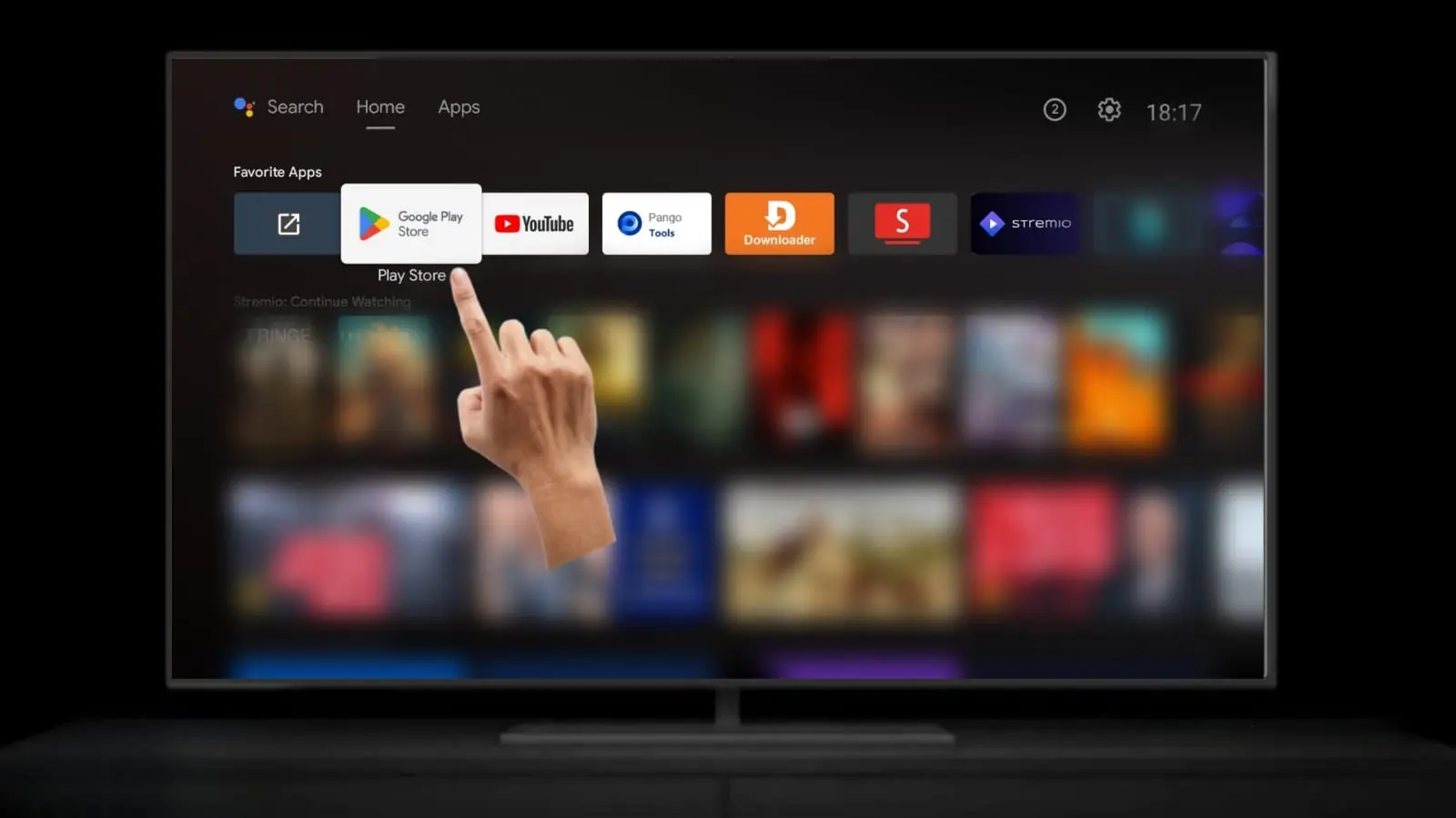
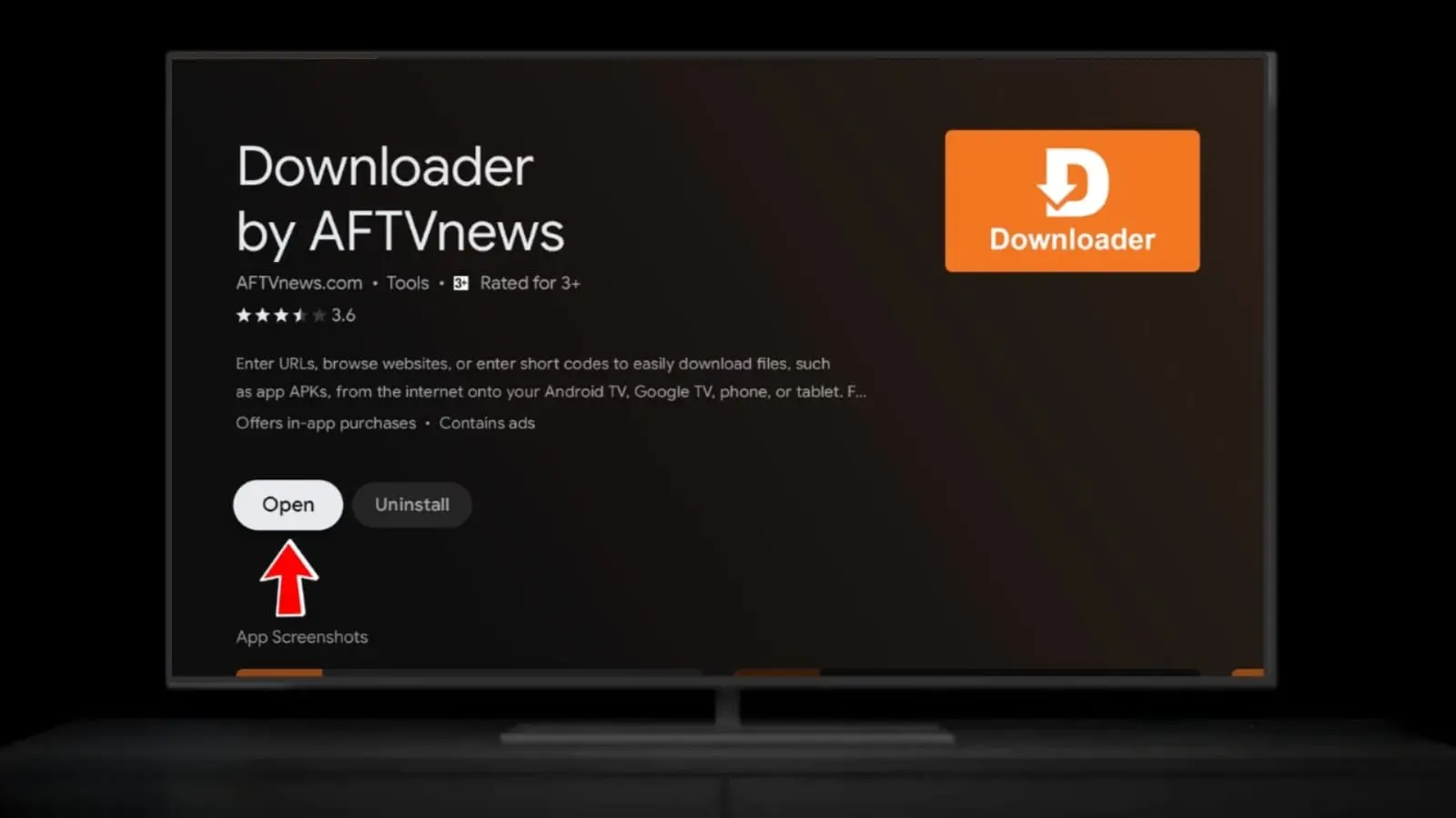
Go to the Google Play Store on your Google TV. Search for "Downloader" by AFTVnews and install the free app. It should appear near the top of results.
Chromecast with Google TV: The Play Store on Chromecast may not show apps designed for phones — search specifically for TV-compatible apps. Downloader should be available.
6
Allow Downloader to Install Unknown Apps
After installing Downloader, open it. When prompted about permissions, select Allow to let Downloader install apps from unknown sources. If not prompted automatically, go to Settings → Apps → Downloader → Install Unknown Apps → Allow.
7
Enter the RBTV77 Code
In the Downloader app, tap the URL field and enter the RBTV77 Downloader code, then press Go:
RBTV77 Downloader Code
5290394
The RBTV77 TV APK will download automatically (30–90 seconds depending on connection speed).
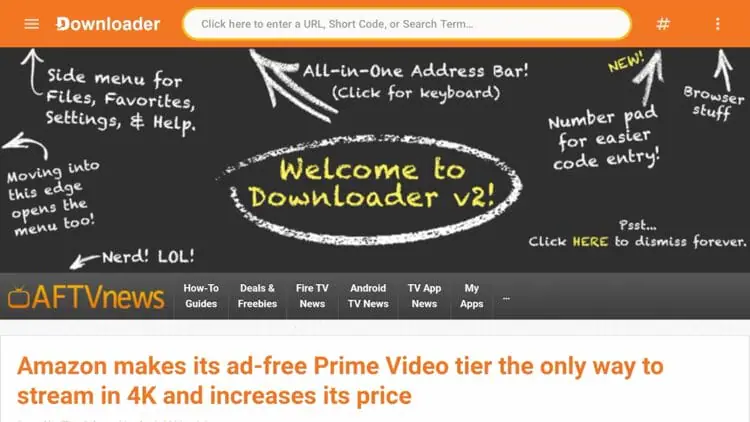
8
Install & Open RBTV77
Tap Install when the installation screen appears. Once installed, tap Open to launch RBTV77. Browse the sports categories, pick a live match, and start watching in HD — completely free, no account needed.
Add to Home Screen: After launching RBTV77, press and hold the app icon in your Apps section to add it to the Google TV home screen for easy access.
Special Notes for Chromecast with Google TV
Chromecast HD (2022)Supports RBTV77 via Downloader. Enable Developer Mode first (Steps 1–4). Uses the same code 5290394. 1080p HD streaming supported.
Chromecast 4K (2020)Full 4K streaming compatible. Same installation process. Pair a Bluetooth keyboard for easier text input when entering the code.
Remote Control TipUse the Google TV remote app on your phone (Google Play/App Store) to type the code 5290394 much faster than using the physical remote.
Storage NoticeChromecast with Google TV has limited storage (8GB). Delete the installer APK when Downloader offers to free up space after installation.
Troubleshooting Google TV Issues
Developer Options MissingMake sure you tapped Build Number exactly 7 times quickly. Go back to Settings → System → About and try again.
Downloader Not in Play StoreUse the Google TV phone remote app to search, or try searching "Downloader AFTVnews". Some regions may have limited availability.
Code Download FailsCheck your internet connection. Make sure you entered 5290394 without spaces or typos. Try switching to a 5GHz Wi-Fi network.
App Crashes on LaunchEnsure you downloaded the TV APK version. The mobile APK may not function properly on Google TV. Reinstall using the correct version.