Fastest Method: The quickest way to install RBTV77 on Fire TV is using the Downloader app with code 5290394. This entire process takes under 5 minutes from start to streaming.
Part 1: Enable Developer Options
Before installing any third-party app on Fire TV, you must enable "Apps from Unknown Sources" in the developer settings. This is a one-time setup.
1
Open Fire TV Settings
From your Fire TV home screen, navigate to the top menu bar and select Settings (the gear/cog icon on the right side of the screen).
2
Go to My Fire TV
Scroll right in the Settings menu and select My Fire TV. On older Fire TV models, this option may be labelled Device or System.
3
Select Developer Options
Inside My Fire TV, scroll down and tap Developer Options. If you don't see this option, you may need to tap the About screen 7 times to unlock it on some Fire TV models.
4
Enable Apps from Unknown Sources
In Developer Options, find Apps from Unknown Sources (or Install Unknown Apps on newer models) and toggle it ON. You will see a confirmation prompt — select Turn On.
Note: On newer FireStick models, you may need to toggle this permission specifically for the Downloader app after installing it.
Part 2: Install the Downloader App
The Downloader app is a free tool that lets you install APK files on Fire TV using a code. It's available directly from the Amazon App Store.
5
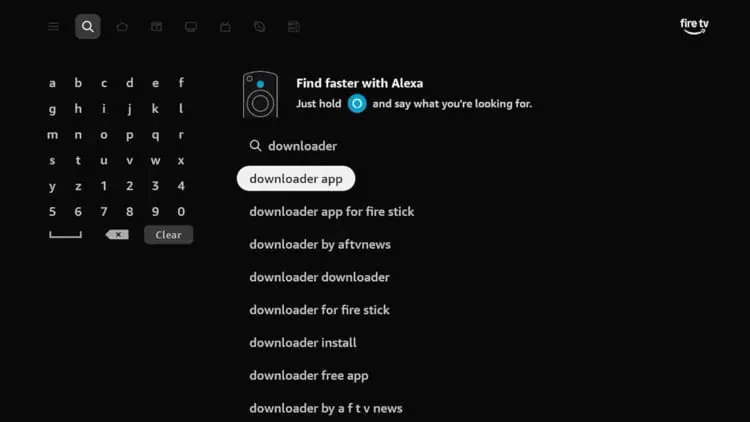
Search for Downloader in App Store
Press the Home button on your remote to go back to the home screen. Use the search bar (magnifying glass icon) and type "Downloader".
6
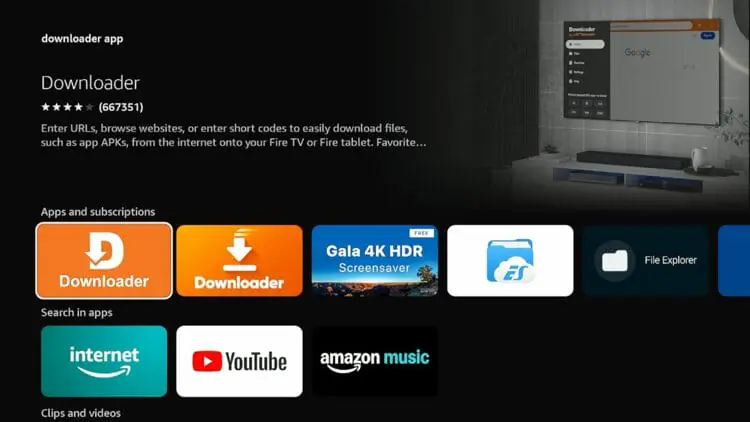
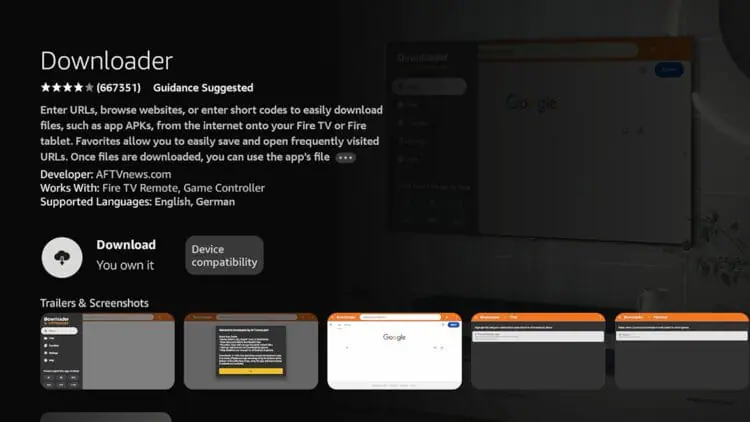
Install Downloader by AFTVnews
Select the orange Downloader app by AFTVnews from the search results and click Download / Get. It's free and installs in about 30 seconds.
Tip: The correct Downloader app has an orange logo. Make sure you're installing by AFTVnews — the most trusted sideloading tool for Fire TV.
Part 3: Download & Install RBTV77
Now use the Downloader app with the RBTV77 code to automatically download and install the live sports streaming app.
7
Open Downloader App
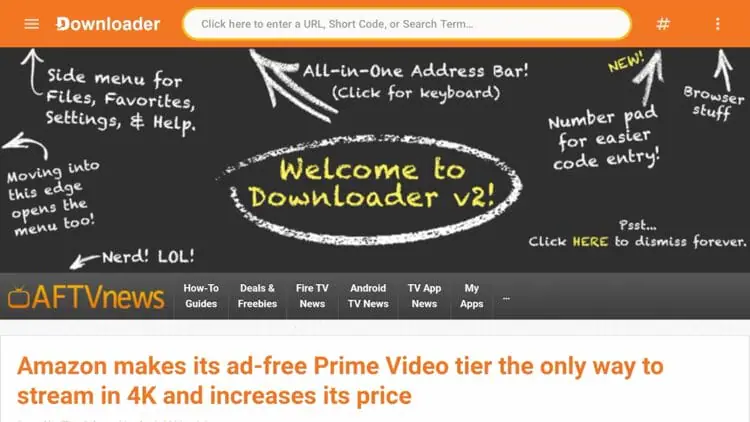
Launch the Downloader app. On first launch, you may be asked to grant storage permissions — select Allow. The app will open to its home screen with a URL/code input field.
8
Enter RBTV77 Downloader Code
Tap the text field at the top of the Downloader home screen. A keyboard will appear. Enter the RBTV77 code and press Go:
RBTV77 Downloader Code
5290394
The Downloader app will automatically fetch the RBTV77 TV APK from the server. This typically takes 30–60 seconds depending on your internet speed.
9
Install RBTV77 APK
Once the download completes, an installation prompt will appear. Tap Install to begin. The installation takes approximately 15–30 seconds.
If you see a "Blocked by Play Protect" warning: This is a standard Android security notice for third-party apps. You can safely tap Install Anyway to proceed.
10
Launch RBTV77 & Start Streaming
After installation, tap Open to launch RBTV77 immediately. You can also find it in Your Apps & Channels on the Fire TV home screen. Select your sport, choose a live match or event, and start watching in HD — completely free.
Pro Tip: Tap Delete APK when Downloader asks — this removes the installer file and frees up storage space. The RBTV77 app itself remains installed.
Troubleshooting Common Issues
Having problems? Here are solutions to the most common installation issues on Fire TV Stick.
Code Not WorkingEnsure you have a stable internet connection. Try re-entering the code 5290394 without spaces. If it still fails, try using the direct URL method in Downloader instead.
App Won't InstallMake sure "Apps from Unknown Sources" is enabled in Developer Options. If using Fire TV Stick 4K Max, also enable it specifically for Downloader in the "Install Unknown Apps" section.
Streaming BufferingSwitch to a different server within RBTV77. Lower the video quality from HD to SD. Ensure your Wi-Fi speed is at least 5 Mbps. Try connecting via Ethernet adapter for best results.
App CrashesClear the app cache: Settings → Applications → Manage Installed Apps → RBTV77 → Clear Cache. If the issue persists, uninstall and reinstall the latest version.
Other Installation Guides
Don't have a Fire TV? Check out our guides for other devices.